Webcam Timer: Sunrise/Sunset & Scheduled Recording
Control when your webcam captures images with flexible timer settings. Skip dark images, automate sunrise/sunset capture, or set custom time ranges.
- Basic Timer: Set fixed start/end times (e.g., 06:00 - 20:00)
- Sunrise/Sunset: Automatic adjustment based on geolocation
- Night Recording: Capture overnight (e.g., 22:00 - 02:00)
- Offset: Adjust ±120 minutes for low-light cameras
Why Use Timer Settings?
Timer settings help you:
| Benefit | Example |
|---|---|
| Save snapshots | Skip dark images at night → use quota for daytime |
| Reduce storage | Only capture interesting hours |
| Automate schedules | No manual adjustments for seasons |
| Optimize plans | Run more cameras on same subscription |
Images uploaded outside timer hours are still received but not processed or shown. Your camera can continue uploading 24/7 without issues.
Basic Timer Configuration
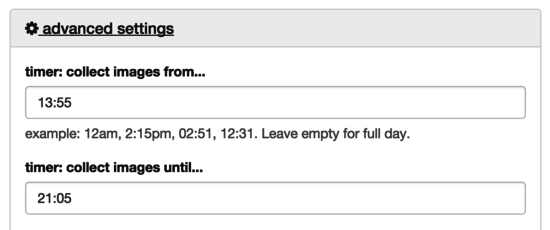
Setting a Fixed Time Range
- Go to Dashboard → Webcams → Edit
- Find the Timer section
- Set your time range:
- From: Start time (e.g.,
06:00) - To: End time (e.g.,
20:00)
- From: Start time (e.g.,
- Click Save
Common Timer Configurations
| Use Case | From | To | Notes |
|---|---|---|---|
| Daytime only | 06:00 | 20:00 | Skip dark hours |
| Business hours | 08:00 | 18:00 | Office/shop webcams |
| Morning rush | 06:00 | 10:00 | Traffic monitoring |
| Evening events | 17:00 | 23:00 | Sunset/nightlife |
Night Recording (Overnight Timer)
For webcams that need to capture overnight, set the end time earlier than the start time:
From: 22:00
To:   02:00
This captures from 10 PM through midnight until 2 AM.
Examples:
| Scenario | From | To |
|---|---|---|
| Late night | 22:00 | 02:00 |
| Overnight | 20:00 | 06:00 |
| Red-eye hours | 23:00 | 05:00 |
Sunrise/Sunset Timer
Automatically adjust capture times based on actual sunrise and sunset at your location. No more manual seasonal adjustments.
How It Works
- You set the webcam’s geolocation
- webcam.io calculates daily sunrise/sunset times
- Capture starts at sunrise, stops at sunset
- Times update automatically throughout the year
The sunrise/sunset timer needs your webcam’s location to calculate times. See Setting Geolocation below.
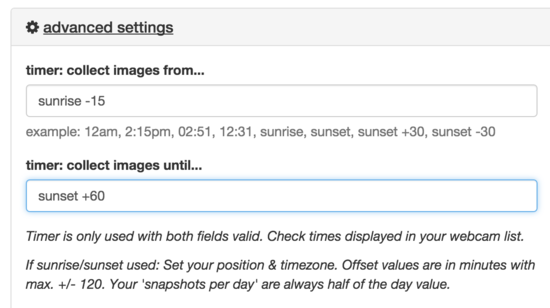
Enable Sunrise/Sunset Timer
- Go to Dashboard → Webcams → Edit
- Scroll down and click Advanced Settings
- Enable Sunrise/Sunset Timer
- Optionally set an Offset (see below)
- Click Save
Setting Geolocation
Two ways to set your webcam’s location:
Option 1: Map Click
- In webcam settings, find the map
- Zoom in to your location (double-click to zoom)
- Click to place the marker
Option 2: Address Search
- Click the search icon (🔍) in the map’s upper right
- Enter an address or city name
- Select from results
You don’t need to pin the exact location. The nearest large city is accurate enough for sunrise/sunset calculations (within 1-2 minutes).
Sunrise/Sunset Offset
Adjust the timer by up to ±120 minutes to account for:
- Low-light camera capabilities
- Local terrain (mountains, buildings)
- Twilight preferences
| Offset | Effect |
|---|---|
| -30 minutes | Start 30 min before sunrise, stop 30 min before sunset |
| 0 minutes | Exactly at official sunrise/sunset |
| +60 minutes | Start 60 min after sunrise, stop 60 min after sunset |
Examples by camera type:
| Camera | Recommended Offset |
|---|---|
| Standard IP camera | +30 to +60 min |
| Low-light capable | -30 to 0 min |
| IR night vision | Not needed (use basic timer) |
webcam.io uses the official sunrise/sunset calculation (sun center at horizon, accounting for atmospheric refraction).
Snapshots Per Day with Sunrise/Sunset
When sunrise/sunset timer is active, your snapshots per day quota is automatically set to half of your plan’s daily limit.
Why?
- Sunrise/sunset times vary throughout the year
- Summer days are longer → more potential snapshots
- This ensures your camera isn’t deactivated if summer captures exceed limits
| Snapshots | With Sunrise/Sunset |
|---|---|
| 1,440/day (1 min) | 720/day |
| 2,880/day (30 sec) | 1,440/day |
| 5,760/day (15 sec) | 2,880/day |
If you need more snapshots with sunrise/sunset, consider upgrading your plan or using a fixed timer instead.
Timer + Other Settings
Timer and Interval
Both settings work together:
- Timer: Controls when images are collected
- Interval: Controls how often within that time
Example: Timer 06:00-20:00 with 1-minute interval = 840 images/day
Timer and FTP Upload
Your camera can upload images 24/7. Timer settings only affect processing:
| Upload Time | Timer Active? | Result |
|---|---|---|
| During timer hours | ✅ Yes | Image processed and shown |
| Outside timer hours | ❌ No | Image received but ignored |
This means:
- No camera reconfiguration needed
- Simple FTP setup (constant upload)
- webcam.io handles the scheduling
Timer and Widgets
Widgets can display different time ranges than your timer:
- Widget shows “last 24 hours” → displays whatever was captured
- Widget shows “today sunrise to now” → uses same logic as timer
Set widget time ranges to match your timer for consistent visitor experience.
Troubleshooting Timer Issues
Images Not Showing
| Problem | Solution |
|---|---|
| Timer set incorrectly | Check From/To times (24-hour format) |
| Wrong timezone | Verify timezone in account settings |
| Overnight timer wrong | Use 22:00 To 02:00 format (not 02:00 To 22:00) |
Sunrise/Sunset Not Working
| Problem | Solution |
|---|---|
| No location set | Add geolocation via map or address search |
| Location too vague | Zoom in and place marker more precisely |
| Times seem wrong | Check offset setting, verify timezone |
Too Few Images Captured
| Problem | Solution |
|---|---|
| Timer too narrow | Expand time range |
| Offset too large | Reduce sunrise/sunset offset |
Timer Best Practices
For Construction Sites
Timer: Sunrise/Sunset with +30 min offset
Interval: 5 minutes
Why: Capture full work day, skip dark hours
For Scenic Views (Tourism)
Timer: 05:00 - 22:00 (fixed)
Interval: 1 minute
Why: Catch sunrise/sunset colors, golden hour
For Weather Monitoring
Timer: 24/7 (no timer)
Interval: 15 minutes
Why: Weather changes around the clock
For Ski Resorts
Timer: 07:00 - 17:00 (winter), Sunrise/Sunset (summer)
Interval: 1 minute
Why: Match lift operating hours
FAQ
Can I set multiple time ranges per day?
Not currently. Use the single range that covers your needs, or set up multiple webcam entries for the same camera with different timers.
Do timer settings affect live streaming?
No. Timer settings only apply to time-lapse (still image) mode. Live streaming runs continuously regardless of timer.
What timezone does the timer use?
The timer uses the timezone set in your account settings. Make sure it matches your webcam’s location.
Can I change the timer without losing images?
Yes. Changing timer settings only affects future captures. All previously captured images remain in your archive.
Does the timer work with URL pull connections?
Yes. Both FTP upload and URL pull respect timer settings. Images fetched outside timer hours are ignored.
Next Steps
- Time-lapse Setup – Initial camera configuration
- Widgets – Embed time-lapse on your website
- Monitoring – Check if your camera is uploading
- Text Overlays – Add branding and timestamps
- FAQ – Common questions answered